
Abraxas Dialogue System
Run a conversation in a Unity UI card and style its text from one Inspector.
On this page
Start with Quick Start to open a dialogue card and follow two different replies. You’ll need Unity 6.6 and a local copy of Abraxas Dialogue System 0.2 or later.
Open the sample#
- Open Window → Package Manager. If Abraxas Dialogue System is already listed under In Project, select it. Otherwise, choose Install package from disk from the + menu and select the package’s
package.json. - If the default TextMeshPro resources are missing, use Window → TextMeshPro → Import TMP Essential Resources. In the package’s Samples tab, import Quick Start.
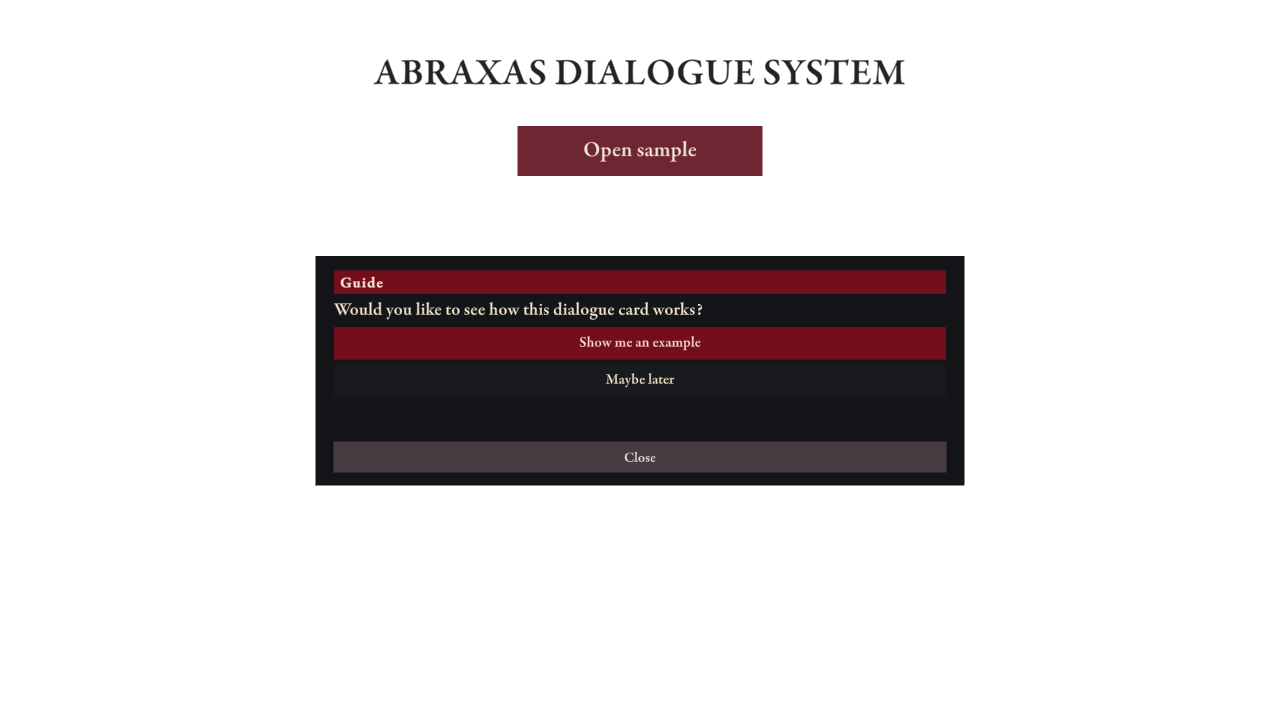
- Open Dialogue Quick Start, enter Play Mode, and click Open sample. Choose Show me an example to read the longer branch, or Maybe later to close the card.
Sample input
Quick Start uses Unity’s Standalone Input Module. If your project uses only the newer Input System, replace it with Input System UI Input Module and use your project’s UI bindings.
The two controllers#
| Component | What to change there |
|---|---|
| Text Controller | Font, color, size, spacing, and overflow for the speaker, line, and replies. |
| Dialogue Controller | Conversation, panel, Continue button, reply template, and open and close events. |
The Dialogue Box component on Dialogue Panel holds the size and appearance settings.
Keep Dialogue Controller on an active object outside the panel it shows and hides. Assign a Text Controller with a Line Label. Put the Reply Template under Reply Container.
Write a conversation#
Create an asset from Assets → Create → Abraxas → Conversation and assign it to Dialogue Controller → Conversation. Set First Line to the ID where the conversation begins. Each line needs a unique Id. Match capitalization when linking to it.
Next Line is the destination for Continue or a reply. Leave it empty on a reply or on a line with no replies to close the card. Replies replace Continue and use the destination on the selected reply.
Choose a box and size#
On Dialogue Panel, open Dialogue Box → Settings. Set Size to Small, Medium, or Large. Move Size Adjustment to fine-tune the box and text together. A value of 0.10 makes the chosen preset 10% larger. Medium is 35% smaller than the original Quick Start card.
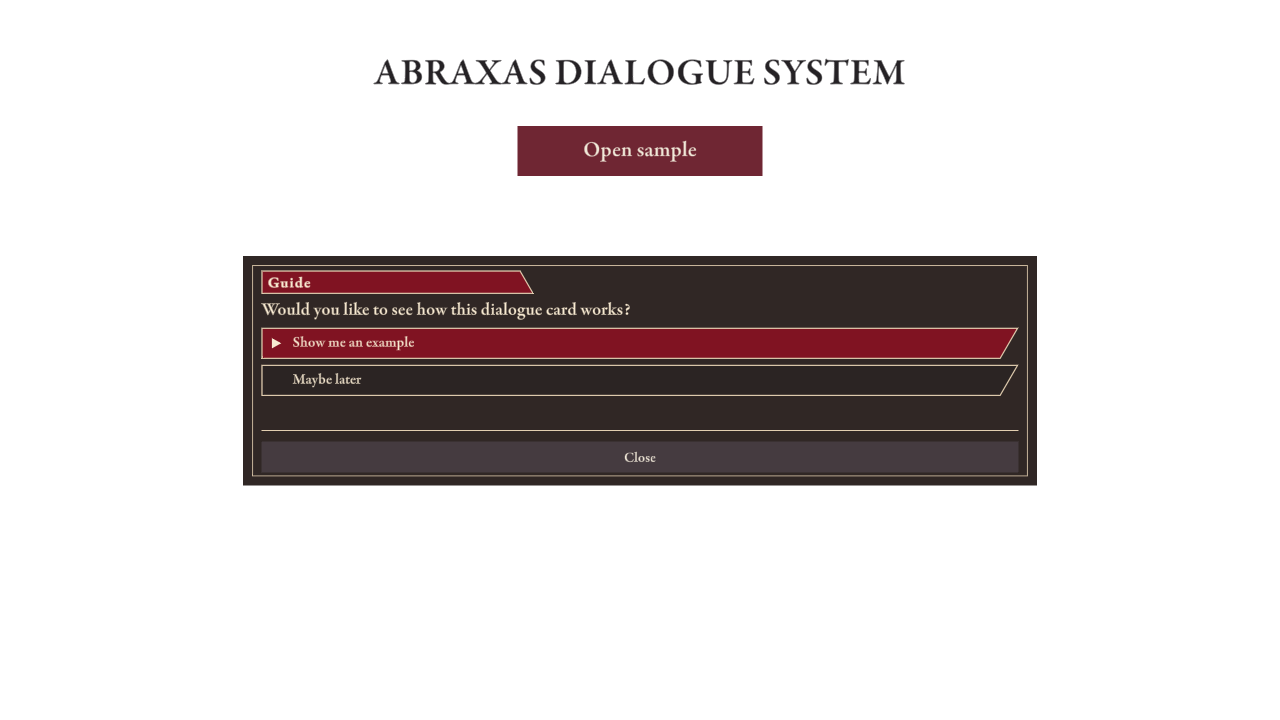
Keep Cinematic for the original Quick Start look. Choose Warm Charcoal for a brown-charcoal backdrop or Midnight for a blue-black backdrop. Both alternatives use an inset border, an angled nameplate, and a triangle on the focused reply. The box fits its parent. Use a safe-area parent for screens with cutouts.
Using your own textures#
Create a Dialogue Box Style from Assets → Create → Abraxas, or copy a supplied style into your project’s Assets folder. Assign that asset to Box Style. Edit its background, speaker, and reply colors in the Inspector. Framed Layout toggles the inset border and angled details on cards wired for them.
For artwork, import an image as Sprite (2D and UI) and assign it to Background Sprite on the style. If the corners stretch, set sprite borders and enable Slice Background. Unity sprite import settings
Use Text Controller for the font, size, and spacing of each label. With a box style assigned, adjust text colors on the style asset.
Fit longer lines and more replies#
Try your longest line with several replies in a narrow Game view. Check that the text wraps and you can scroll to the last reply. The sample’s Scroll View keeps longer content reachable. Game view and display sizes
Connect your own UI#
Call Open() for the assigned conversation or TryOpen(conversation) for another one. Assign the Continue Button and Reply Template in the Inspector. Connect a Close button to Close().
Use On Opened and On Closed for any gameplay input, cursor, or UI changes your project needs. Unity quick reference
FAQ#
Find out why it won’t start#
- Open does nothing. Check the button’s On Click event and the assigned Conversation. Its First Line must match a line ID.
- Replies don’t respond. Check that one EventSystem is active and its UI input module matches your project.
What happens when the card closes?#
If On Opened pauses gameplay, restore it in On Closed. Test both finishing a conversation and closing it early. After each exit, try moving and looking around, then check the cursor.